Integrations
Connect your AI assistant with MCP
A step-by-step guide to connecting Cursor, VS Code, Codex, Claude Code, or Grok Build to your SpinBuild projects.
Updated 26 Oct 2026
MCP is a connection between your AI assistant and SpinBuild. Think of it as a bridge: your assistant writes the code, and SpinBuild keeps the project files, running preview, and GitHub connection in one place.
You set it up once. After that, you can ask your assistant to find a project, read its files, make a change, and push that change to GitHub.
The screenshots below were captured from the real desktop apps on October 26, 2026. Some are cropped to focus on the relevant controls and keep account details out of view. They show setup screens, not a completed authenticated connection. Your app version may look different.
Before you start
You need:
- A SpinBuild account and a project you own.
- An AI client already installed and connected to its model or account.
- A few minutes to create a SpinBuild access token and add the connection.
- A connected GitHub repository if you want to push code later.
An access token is like a password for your assistant. Use it only in your own client settings. Do not put it in a chat message, screenshot, project file, or GitHub commit.
Your assistant uses its own model access. SpinBuild project, hosting, and plan limits still apply.
Step 1: Open your SpinBuild project
- Sign in to SpinBuild.
- Open Projects and choose the project you want to work on.
- If you do not have one yet, choose New project, give it a name, and select a framework.
- Open the builder and start its preview if you want to see file changes while you work.
For help with your first project, follow the quickstart.
You should now have: a project listed in your account. Creating a new project happens in SpinBuild; the MCP tools described here work on projects that already exist.
Step 2: Make your access token
- Open Settings in SpinBuild.
- Find MCP access tokens.
- In Name, type something you will recognize, such as
My laptop. - Choose an expiry, such as In 30 days. You can make a new token later.
- If you see a Scope field, choose Your projects (standard).
- Click Create token.
- Click the new token to copy it. SpinBuild shows the full token only once.

Keep the token ready for the next step. Wherever this guide says YOUR_TOKEN, replace those words with the token you just copied. Keep the quotation marks around it.
You should now have: a token copied privately. You can revoke it from the same Settings page at any time.
Step 3: Choose your AI client
Follow just one of these sections:
 Connect with Cursor
- Open your project in Cursor.
- Open Cursor Settings using the gear button.
- Open Customize, then choose MCPs. Older versions may call this Tools & MCP.
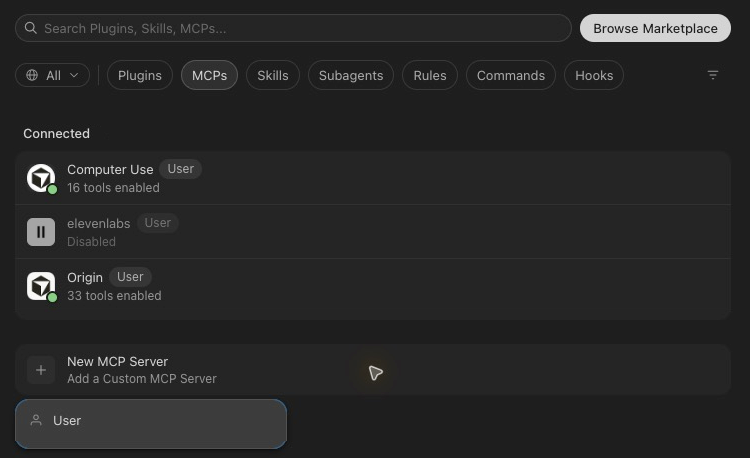
- Click New MCP Server and choose User to keep the connection in your personal settings, outside your project repository.
- In your personal
~/.cursor/mcp.json, add the following configuration. If other servers are present, addspinbuildinside the existingmcpServersobject. - Replace
YOUR_TOKENprivately with the token from SpinBuild. Keep the wordBearerand the space after it.
{
  "mcpServers": {
    "spinbuild": {
      "url": "https://backend.spinbuild.ai/mcp",
      "headers": {
        "Authorization": "Bearer YOUR_TOKEN"
      }
    }
  }
}
- Save the file, return to Customize → MCPs, and enable SpinBuild. Restart Cursor if it has not picked up the configuration.
- Open Agent and ask:
Use SpinBuild to call whoami, then list my projects. Do not change any files yet.
The screenshot shows where to add a server; it does not show SpinBuild already connected. Your token stays in your personal configuration. Do not paste it into Agent chat or commit it to GitHub.
Connect with VS Code
Use VS Code with an AI agent that supports MCP servers.
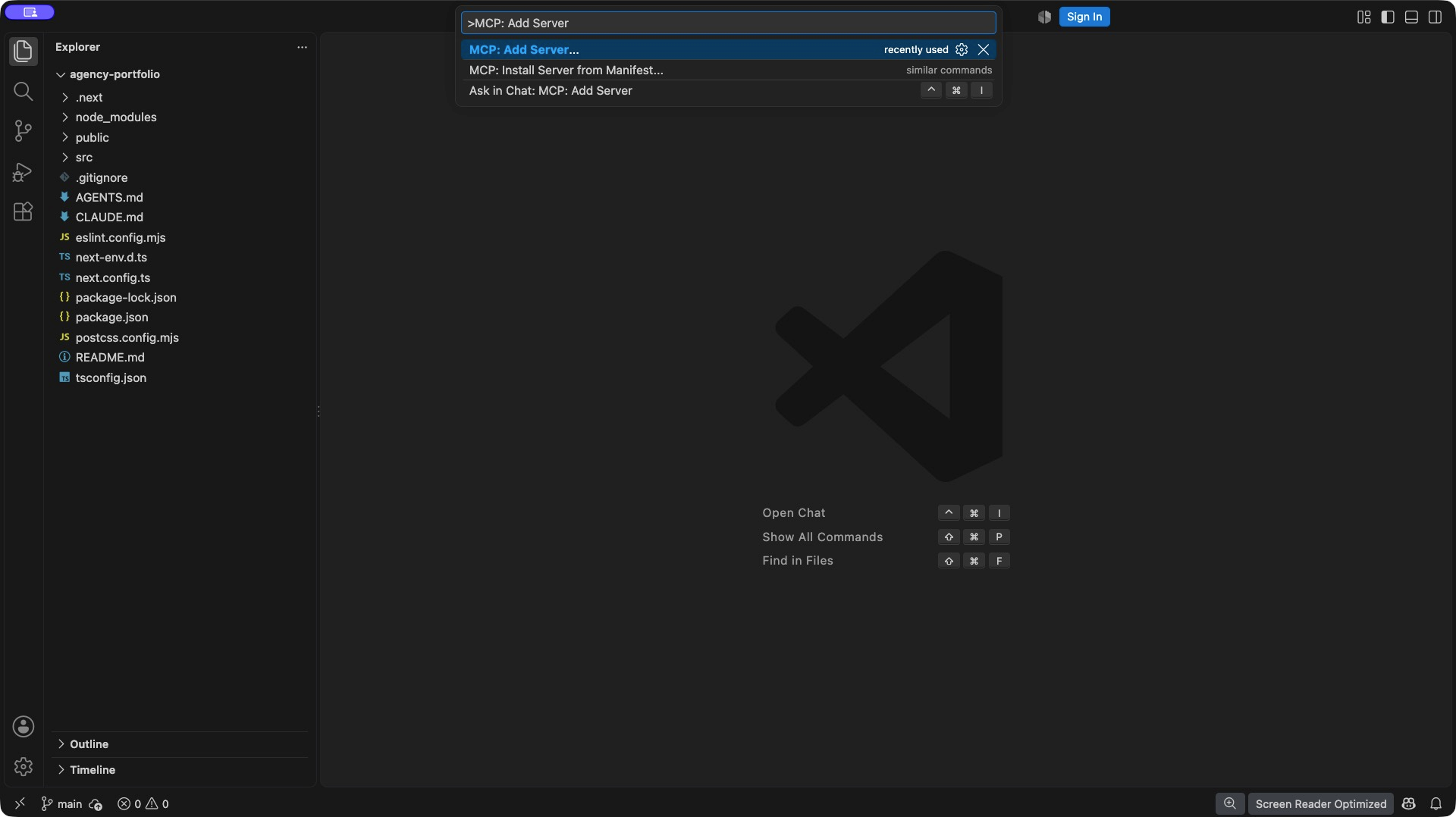
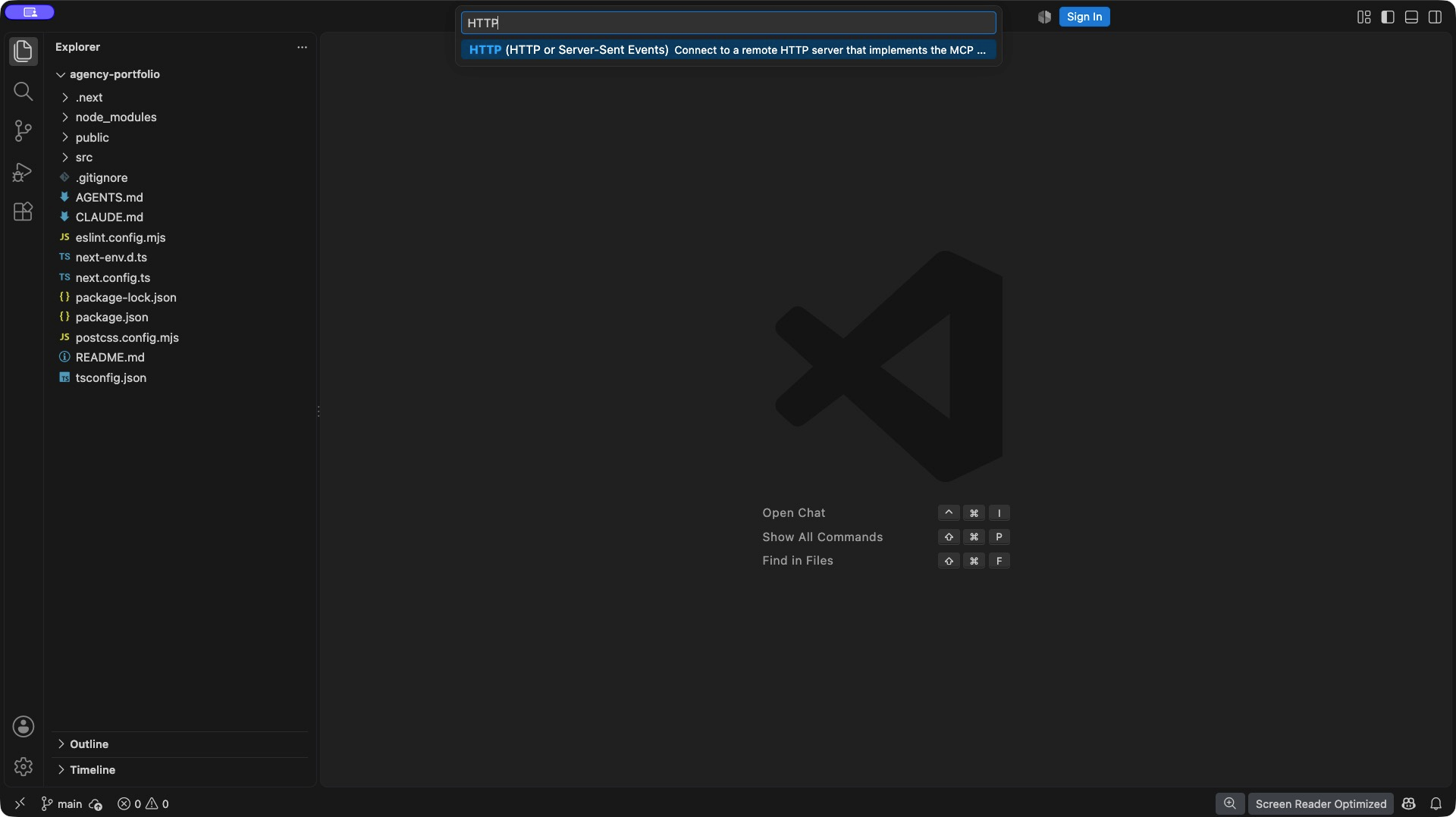
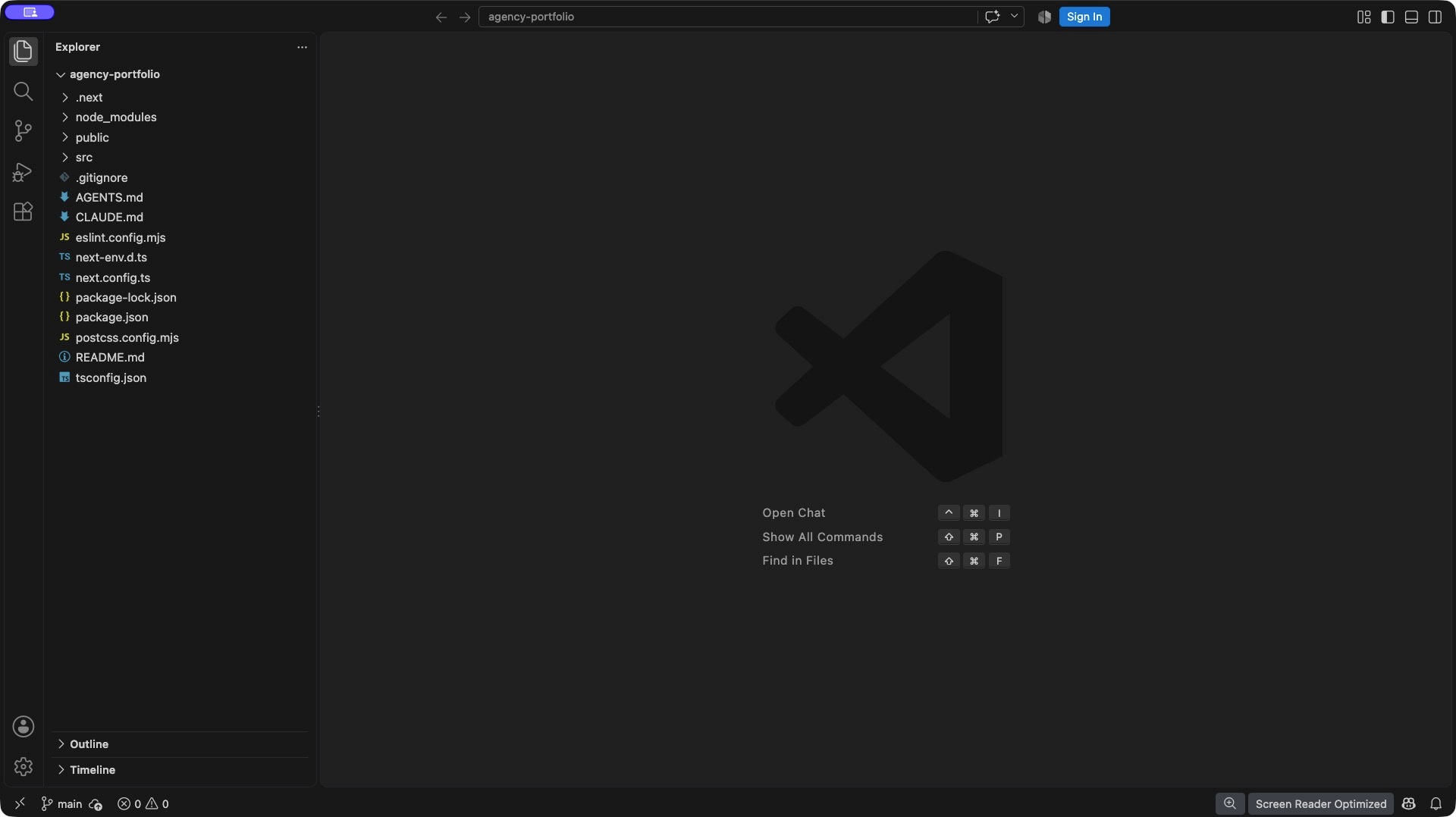
The following real screenshots show the MCP: Add Server wizard with a project open:
- Open the Command Palette and select MCP: Add Server.
- Choose HTTP (HTTP or Server-Sent Events).
- Enter
https://backend.spinbuild.ai/mcpas the server URL.
For a configuration that also prompts privately for your token, follow these steps:
- Open your workspace in VS Code.
- Open the Command Palette: Cmd + Shift + P on Mac, or Ctrl + Shift + P on Windows/Linux.
- Run MCP: Open Workspace Folder MCP Configuration. This opens
.vscode/mcp.json. - Add the configuration below. If the file already has other servers, add
spinbuildinside its existingserversobject and add the input inside its existinginputslist. Do not replace your other connections. - Save the file.
- Start the
spinbuildserver using the MCP server controls. When prompted for SpinBuild MCP access token, paste your token. - Enable the SpinBuild tools in your MCP-capable agent session. Approve the server if VS Code asks you to trust it.
{
  "inputs": [
    {
      "type": "promptString",
      "id": "spinbuildToken",
      "description": "SpinBuild MCP access token",
      "password": true
    }
  ],
  "servers": {
    "spinbuild": {
      "type": "http",
      "url": "https://backend.spinbuild.ai/mcp",
      "headers": {
        "Authorization": "Bearer ${input:spinbuildToken}"
      }
    }
  }
}
This example asks for the token instead of putting the real token into the project configuration file. Client and agent harness support can differ. If your chosen harness cannot forward interactive input prompts, see the environment-variable option.
Check it: open your agent chat and send: Use SpinBuild to tell me which account I am connected to. Then list my projects.
 Connect with Codex
These steps use the Codex CLI. Its MCP configuration is also shared with the Codex IDE extension.
- Open a terminal on your computer.
- Replace
YOUR_TOKENin the first command below with your token. - Run the first command to make the token available to this terminal session.
- Run the second command to register SpinBuild.
On Mac or Linux:
export SPINBUILD_TOKEN="YOUR_TOKEN"
codex mcp add spinbuild --url https://backend.spinbuild.ai/mcp --bearer-token-env-var SPINBUILD_TOKEN
On Windows PowerShell:
$env:SPINBUILD_TOKEN="YOUR_TOKEN"
codex mcp add spinbuild --url https://backend.spinbuild.ai/mcp --bearer-token-env-var SPINBUILD_TOKEN
- Run
codex mcp list. You should see a server namedspinbuild. - Start Codex from that same terminal, then ask it to list your SpinBuild projects.
The first command sets a token for the current terminal session. A new terminal or a desktop app started elsewhere may not have it. Make SPINBUILD_TOKEN available in the environment that actually launches your Codex client, then restart that client. Do not share a shell configuration file containing your token.
Check it: send Use SpinBuild to list my projects. Do not change anything yet.
 Connect with Claude Code
- Open a terminal where Claude Code is available.
- Replace
YOUR_TOKENbelow with your SpinBuild token. - Run this command:
claude mcp add --transport http spinbuild https://backend.spinbuild.ai/mcp --header "Authorization: Bearer YOUR_TOKEN"
- Open Claude Code and type
/mcp. - Check that
spinbuildis listed and connected. Approve the server and its tools if the client asks. - Ask Claude to list your SpinBuild projects.
Check it: send Use the SpinBuild tools to list my projects. Do not edit files yet.
 Connect with Grok Build
Grok Build connects to SpinBuild from the terminal. The command saves the server in your personal config, ~/.grok/config.toml. It does not download a server package.
- Open a terminal where the
grokcommand is available. - Replace
YOUR_TOKENbelow with your SpinBuild token. - Run this command:
grok mcp add --transport http spinbuild https://backend.spinbuild.ai/mcp --header "Authorization: Bearer YOUR_TOKEN"
- Run
grok mcp list. You should see a server namedspinbuild. - Start Grok Build on that same computer and ask it to list your SpinBuild projects.
Keep the word Bearer and the space after it. The command stores the token in ~/.grok/config.toml on this computer. Do not commit that file, and do not paste the token into a project.
Check it: send Use SpinBuild's whoami tool, then list my projects.
Step 4: Make your first small change
Start with a small, clear request. Give the project name so your assistant does not have to guess.
For example:
Use SpinBuild to find my project called "Booking demo".
Read its files and find the booking form.
Add a helpful error when someone chooses a date in the past.
Keep the existing design. Do not push to GitHub yet.
Your assistant can list and read files before editing them. If it asks for permission to call a tool, check that the project and action are the ones you intended.
Important: MCP file writes save directly to the project as new versions. They do not first become pending diffs in SpinBuild's AI review queue. Ask your assistant to explain its plan before writing if you want to review the approach first.
Step 5: Check the preview
- Open the same project in SpinBuild.
- Keep its preview running.
- Ask your assistant to make the change.
- Inspect the result in the preview. Try the button or form it changed.
File edits are synced to a preview that is already running. MCP does not start a stopped preview for you. If the app does not update, check that the preview is running and use the preview troubleshooting guide.
Step 6: Push to GitHub when ready
First, connect your GitHub repository in SpinBuild. Your plan must allow GitHub push.
Then ask:
Show me the changes in "Booking demo".
If they match the validation change we discussed, push them to its connected
GitHub repository with the commit message "Improve booking date validation".
A push uses your connected GitHub account and the repository attached to that project. It does not automatically publish the app. Use SpinBuild's deployment steps when you are ready to publish.
What the connection can do
| Ask your assistant to… | SpinBuild tool |
|---|---|
| Check which account is connected | whoami |
| List projects you own | list_my_projects |
| List a project's files | list_my_project_files |
| Read one file | read_my_project_file |
| Write or replace a file | write_my_project_file |
| Delete a file you no longer need | delete_my_project_file |
| Read recorded production build history and logs | list_my_project_builds |
| Push a project to its connected GitHub repository | push_my_project |
A standard token reaches projects owned by its account. A shared project owned by somebody else is not included in this MCP toolset. Preview startup, creating projects, and publishing are done in SpinBuild, rather than through the tools listed above.
If something does not work
The server says unauthorized
Your token may be missing, expired, or revoked. Create a new one in Settings, replace it in your client, and reconnect. For header-based setup, use exactly Authorization: Bearer YOUR_TOKEN.
Codex cannot find the token
Set SPINBUILD_TOKEN in the environment that launches Codex, then restart it. Setting the variable in one terminal does not automatically pass it to another terminal or an already-running desktop app.
When a client cannot use a token prompt
Some agent harnesses do not receive VS Code's ${input:...} prompts. Use an environment-variable connection instead, if your client supports it.
- Set
SPINBUILD_TOKENprivately in the environment that launches your client, using the Mac/Linux or PowerShell example in the Codex section. - In a compatible client's configuration, use an environment reference for the Authorization header.
- Restart the client from that environment.
For a portable .mcp.json configuration supported by compatible Copilot harnesses:
{
  "mcpServers": {
    "spinbuild": {
      "type": "http",
      "url": "https://backend.spinbuild.ai/mcp",
      "headers": {
        "Authorization": "Bearer ${SPINBUILD_TOKEN}"
      }
    }
  }
}
Do not replace the environment reference in a project file with your real token. Other MCP clients can use different configuration formats; choose the instructions for your client above.
My project is missing
Make sure the token belongs to the account that owns the project. Ask the assistant to check whoami and list_my_projects. Check that the project name is spelled correctly.
A write succeeded but the preview did not change
Open the project and start its preview in SpinBuild. If it is already running, check its status and reload it. Ask the assistant what previewSynced returned from its write call.
GitHub push failed
Check the project's GitHub connection and your plan's GitHub permissions. Ask the assistant to read the returned error before retrying. A push is separate from publishing.
I lost or shared my token
Revoke it in Settings → MCP access tokens and create a replacement. A token is shown in full only once, so a lost token cannot be displayed again.
References
Everything needed for the SpinBuild setup is above. These external references provide more detail about the clients and protocol: