supabase · 4 min read
Postgres is the default. You can copy your tables to Supabase if you want.
Every SpinBuild app starts on private Postgres. If you would rather use your own Supabase, sign in and we copy the tables and rows over.
 Team SpinBuild
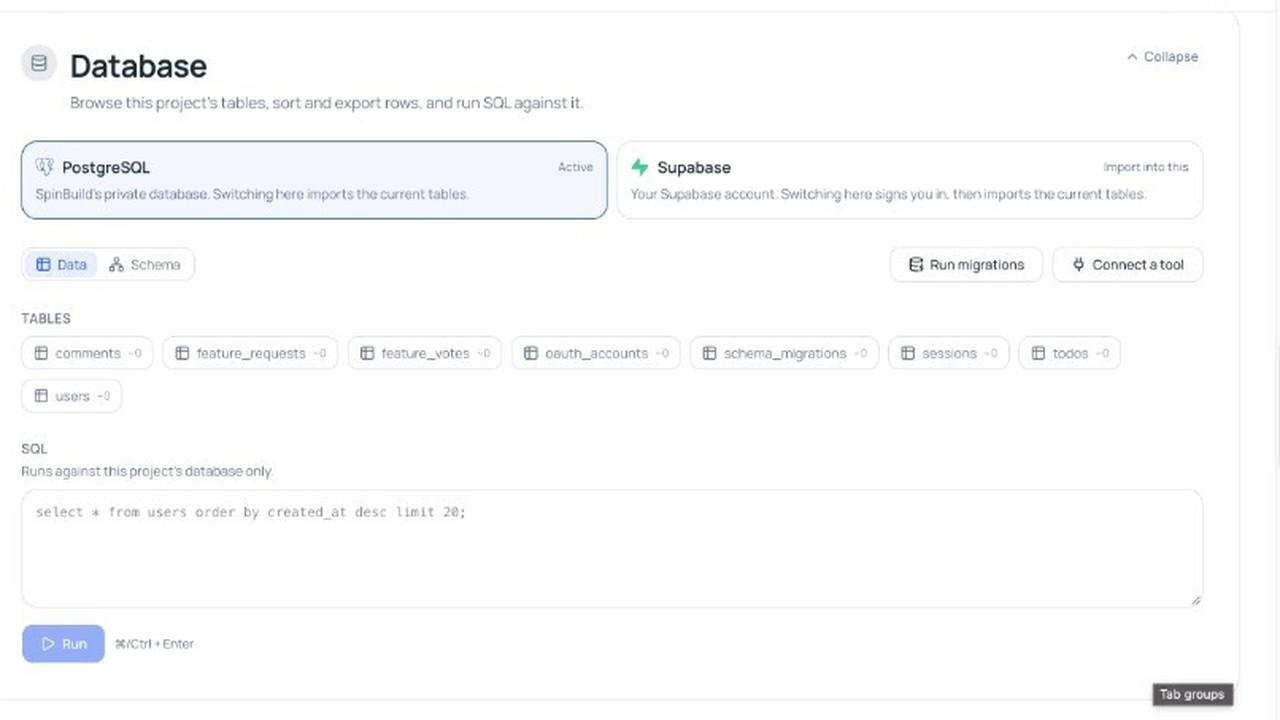
Every SpinBuild app still starts on Postgres. That is the native database. You do not have to change it.
If you already use Supabase, or you want the tables to live in your own Supabase account, you can. You sign in. We copy the tables and the rows. After that, this app uses Supabase as the database.
This post is the walk-through. One screen at a time.
First, what you already have
When you describe an app, SpinBuild writes the frontend, the backend, and a private Postgres for that project. That Postgres is the default. It is already running. Your tables — comments, users, todos, whatever the app needed — sit there.
Starter is still free. No credit card.
The live URL is still your-app.apps.spinbuild.ai. That part did not change.
What “import into Supabase” means
It does not mean you paste a connection string.
It means:
- You click Supabase on the Database page.
- You click Continue with Supabase.
- You sign in to your Supabase account.
- You allow SpinBuild to create a database there.
- We copy the current public tables, functions, and rows from Postgres into that database.
Only one database is active at a time. If Postgres is Active, the app talks to Postgres. After a successful import, Supabase is Active, and the app talks to that instead. Switching copies the data. We never start you on an empty database.
Supabase bills your account for that project. SpinBuild does not pay it for you.
This is the database only. It is not Supabase Auth, Storage, or Edge Functions. Sign-in for your own customers is still something you ask for in the app, not this import.
Step 1. Open Database
Open the project. Go to Settings, then Database.
You will see two cards.
- PostgreSQL says Active. That is SpinBuild’s private database. This is the default.
- Supabase says Import into this. That is the optional move.
Under those cards you can see the tables the app already has.
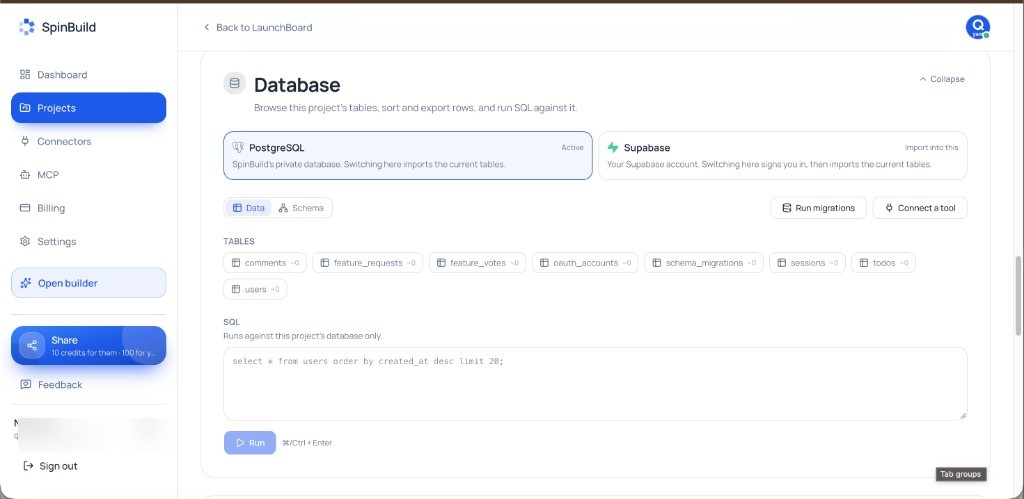
The Database page. Postgres is Active. Supabase is the import, not the default.
If you are happy with Postgres, stop here. You do not have to import anything.
Step 2. Click Supabase, then Continue
Click the Supabase card.
A window opens: Import into Supabase.
It says Postgres is the database the app uses now. Everything in it is copied into Supabase. After that, Supabase is the only database new tables are created in.
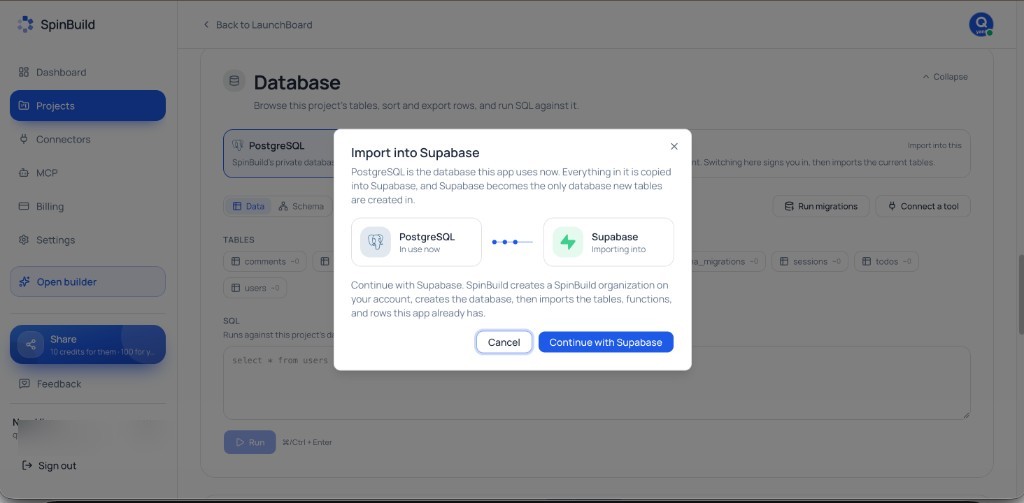
Read the window. Then click Continue with Supabase. There is no “start empty” button.
Click Continue with Supabase.
If the server is not set up for Supabase sign-in yet, you will see a short message that it is not set up. That is a setup problem on our side, not something you fix with a URL.
Step 3. Sign in and allow SpinBuild
A Supabase page opens: Authorize SpinBuild.
Sign in if you are asked. Then pick your organization. That organization is where the new database will live, and where the bill will go.
The picture below is that page. The organization name is blurred on purpose. Use your own org, not someone else’s.
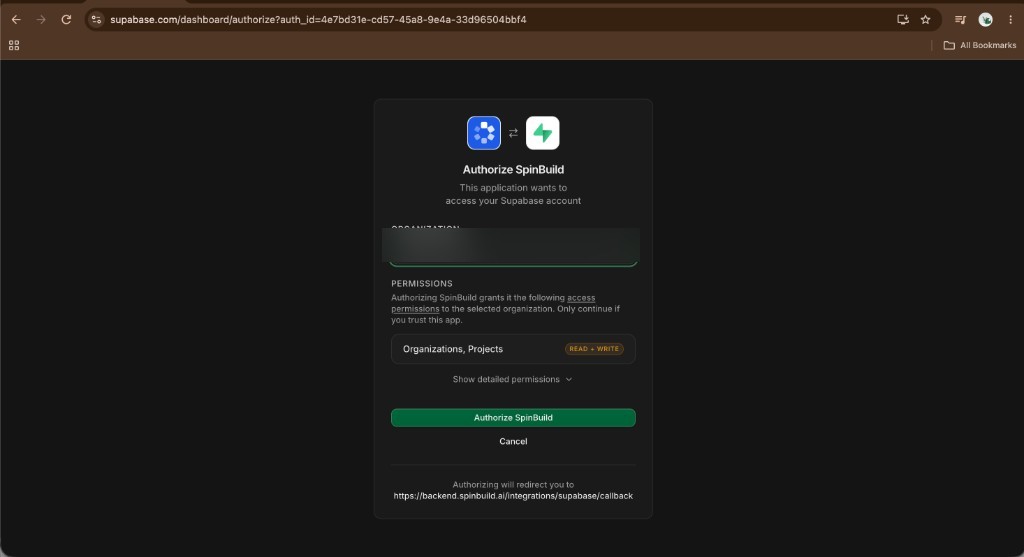
Pick your organization. Then click Authorize SpinBuild.
The page lists permissions for Organizations and Projects (read and write). That is how SpinBuild can create the database and copy the tables. Only continue if you trust the app.
Click Authorize SpinBuild.
SpinBuild then creates a SpinBuild organization on your account if you do not already have one, creates the database, and imports the tables, functions, and rows this app already has.
Wait until you are back on the Database page and Supabase says Active.
After it is done
The app still uses a normal Postgres connection (DATABASE_URL). It does not switch to a special Supabase client. Your code keeps talking SQL the same way.
You can still open Database, look at tables, and run SQL. You are looking at the active database — now the one in your Supabase account.
If you later switch back to SpinBuild Postgres, we copy the public schema, functions, and rows the other way. Again: one active database, never empty.
What this is not
- It is not a paste-a-URL setup.
- It is not two databases running at once.
- It is not custom domains. The live URL is still
your-app.apps.spinbuild.ai. - It is not two-way GitHub. A GitHub push is still a one-way copy of the code, if you connected a repo.
- It is not Stripe or OpenAI. Those are still coming when they are ready.
If something looks wrong
If authorize fails, sign in to Supabase in another tab first, then try again.
If you authorized the wrong organization, the database was created on that org’s bill. Use the org you actually want next time.
If tables are missing after the import, check that you waited until Supabase showed Active. Only the public schema is copied.
Start here
Postgres is the default. You can keep it.
If you want Supabase, sign in and import. The screenshots above are the real screens.
Read the Supabase docs if you want the same steps in the help pages. Or open a project at spinbuild.ai and look at Database yourself.
Related topics
Guide
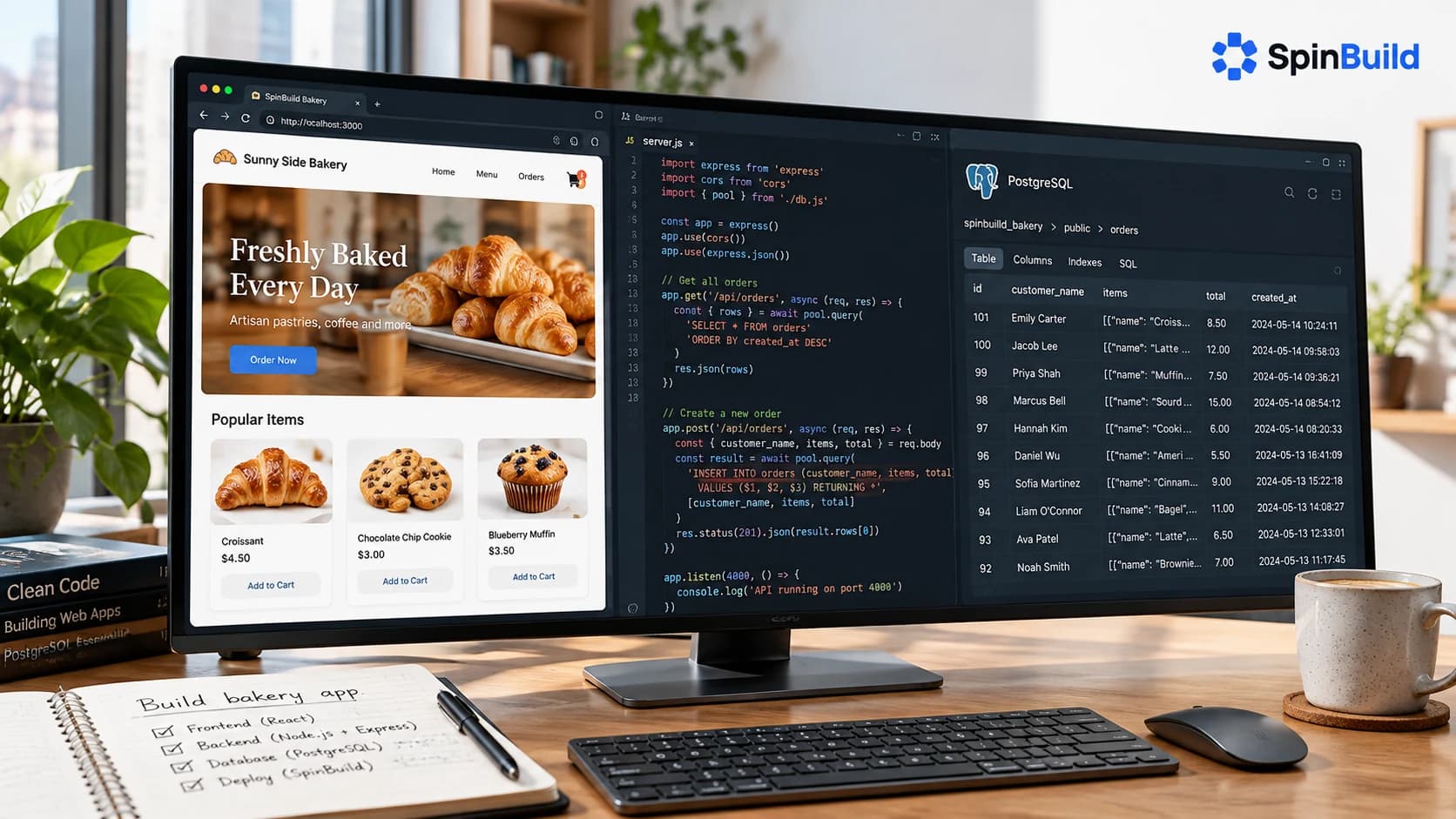
Frontend, backend, and a private Postgres: what that means in practice
A plain-language tour of the three pieces SpinBuild writes, and the two things it deliberately does not add.
9 min · Oct 5, 2026
Guide
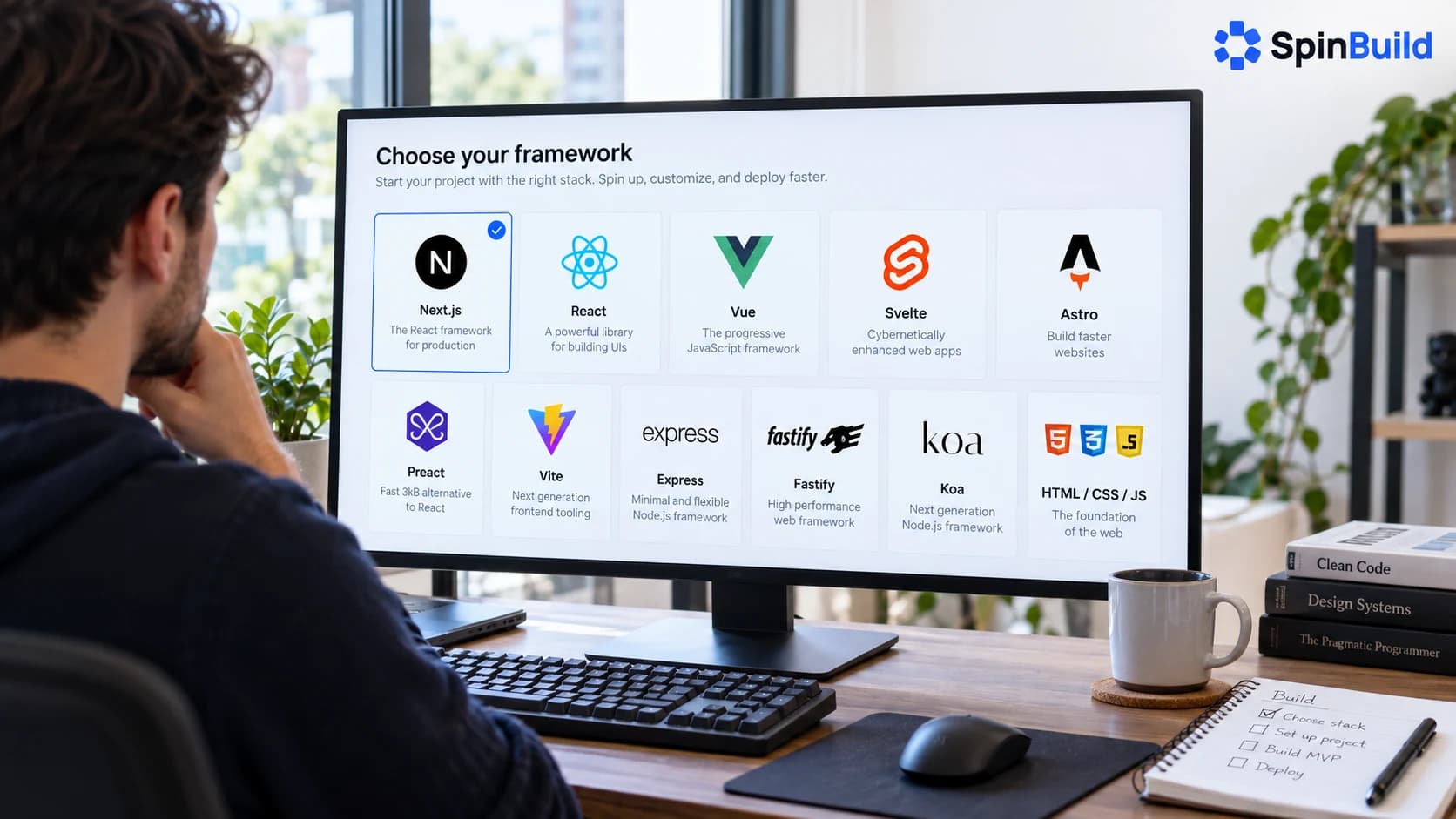
Frameworks you can pick when you create a project
This guide covers the frameworks SpinBuild supports as of October 20, 2026 — Next.js, React, Vue, Svelte, Astro, Express, and more at spinbuild.ai.
6 min · Oct 20, 2026
Guide
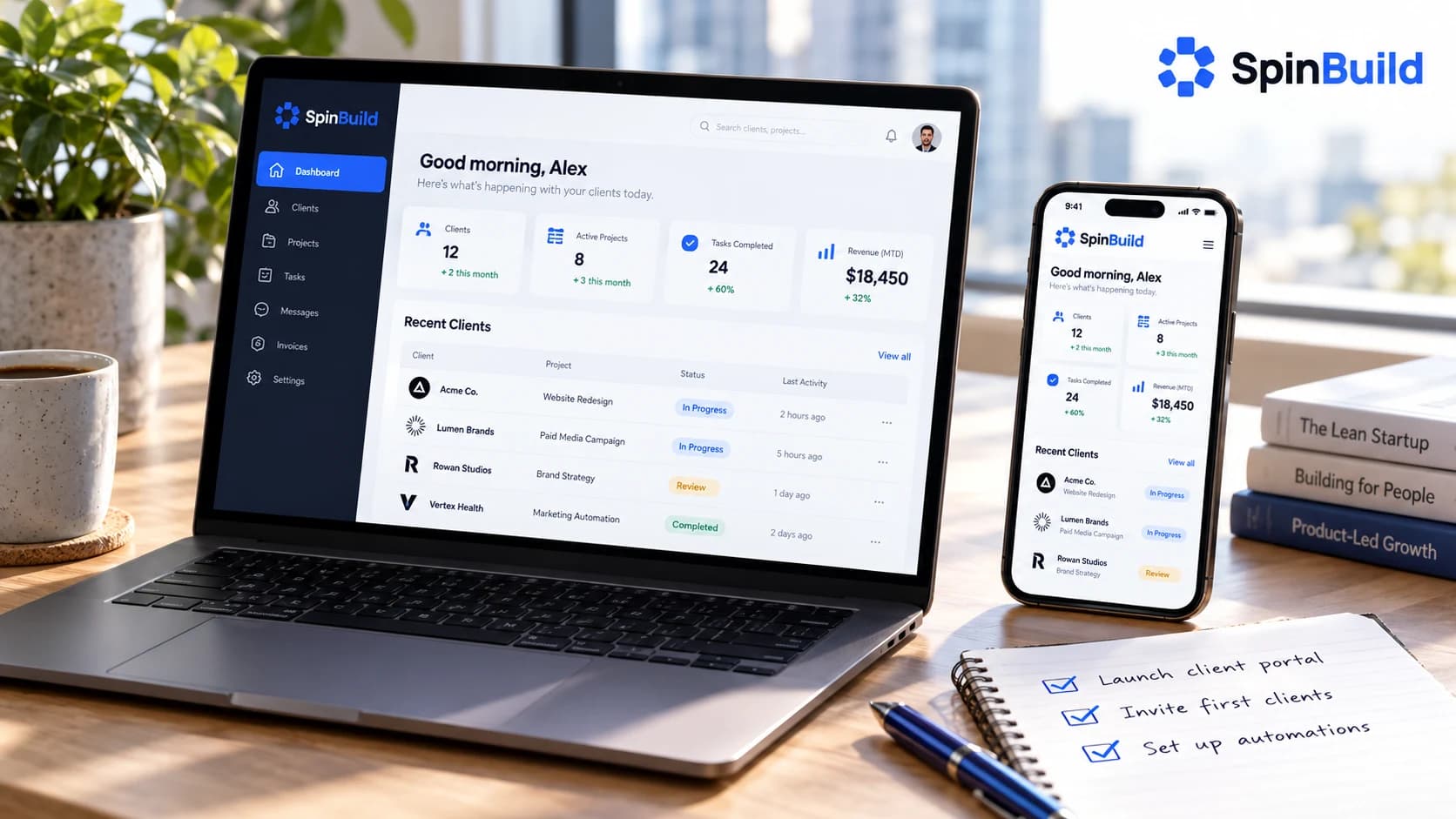
What you have when the first version is done
A frontend, a backend, a private Postgres, a diff you accepted, and a live HTTPS address. Here is the list, and the limits that come with it.
7 min · Oct 8, 2026